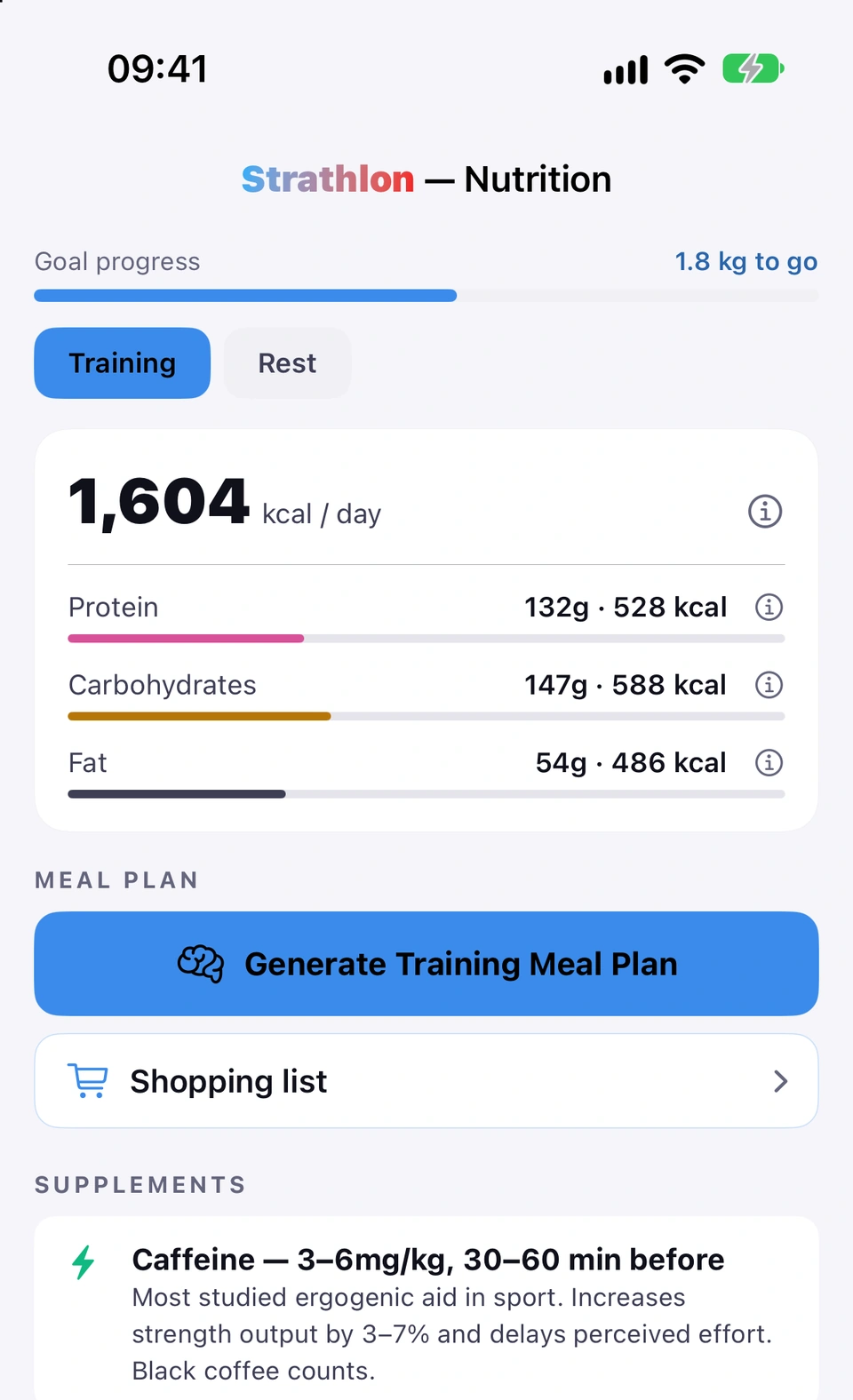
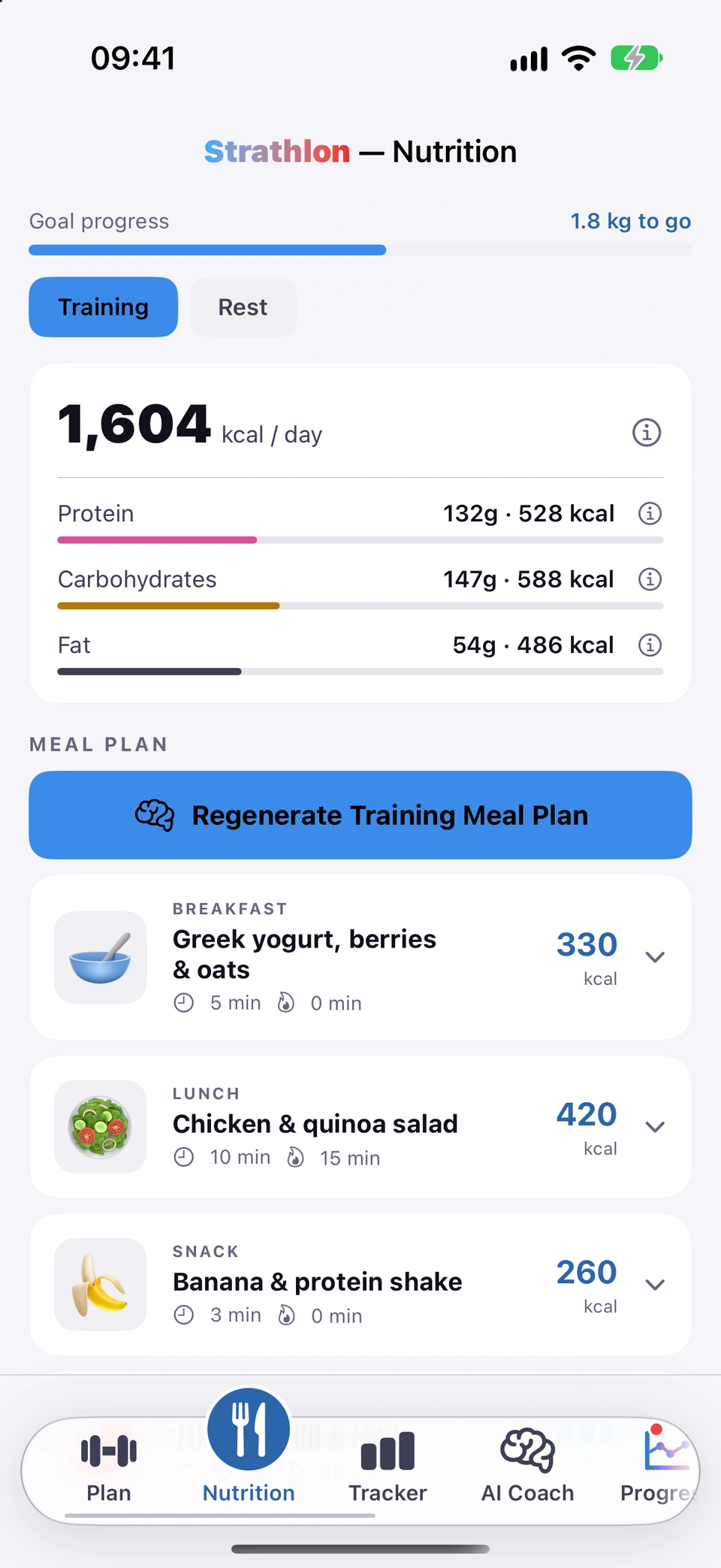
Separate calorie and macro targets for Training, Rest, Match Day and Sport Training days, in chips across the top of the Nutrition tab.
WhereNutrition›day-type chips
What it is
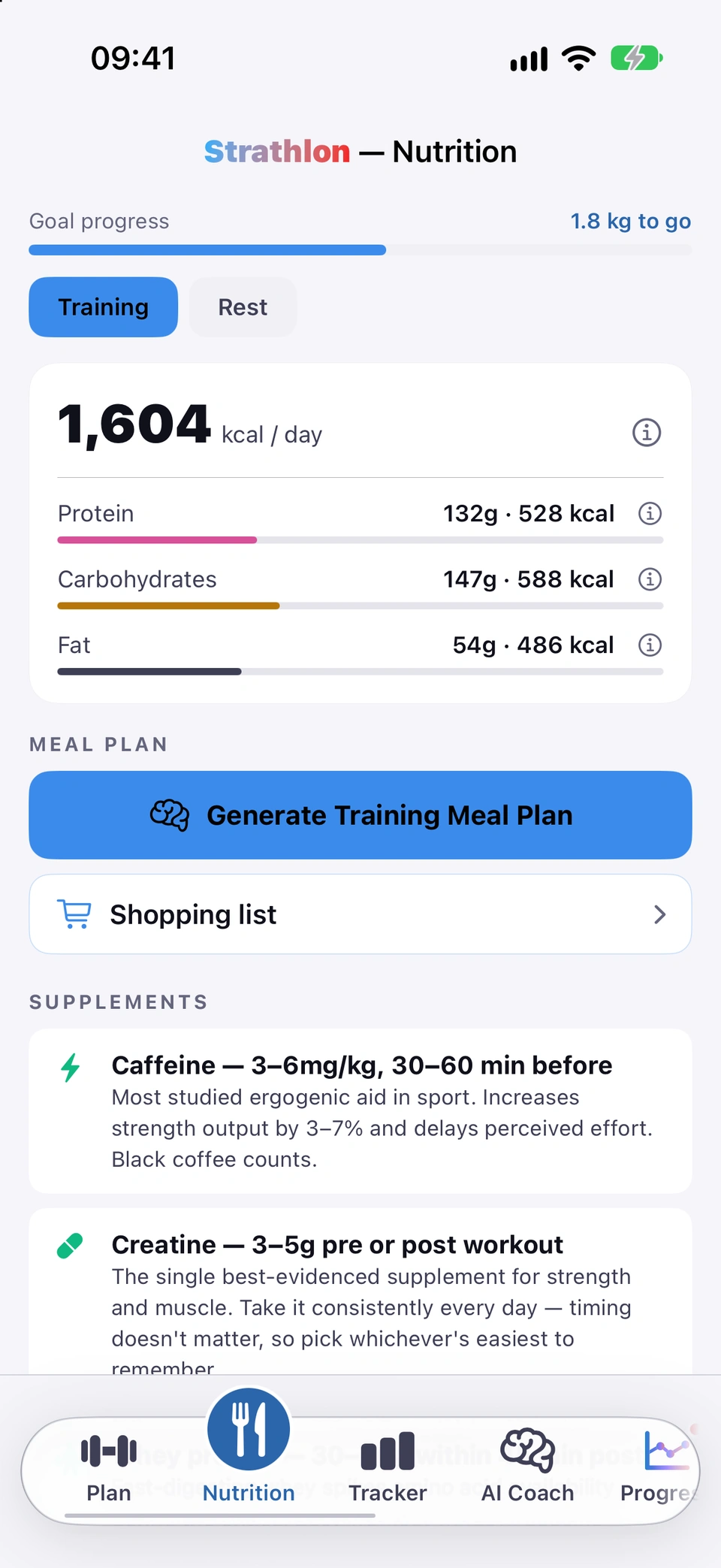
The Nutrition tab shows a row of day-type chips — Training, Rest, and (if you have a sport set up) Match Day and Sport Training — and opens on today's own day type.
Why it helps
Your calorie and macro needs differ by the kind of day you're having, so each day type gets its own figures rather than one flat target.
Day-type targets.
How to use it
Open the Nutrition tab — it opens on today's own day type.
Tap another chip to see that day type's figures instead.
Tips
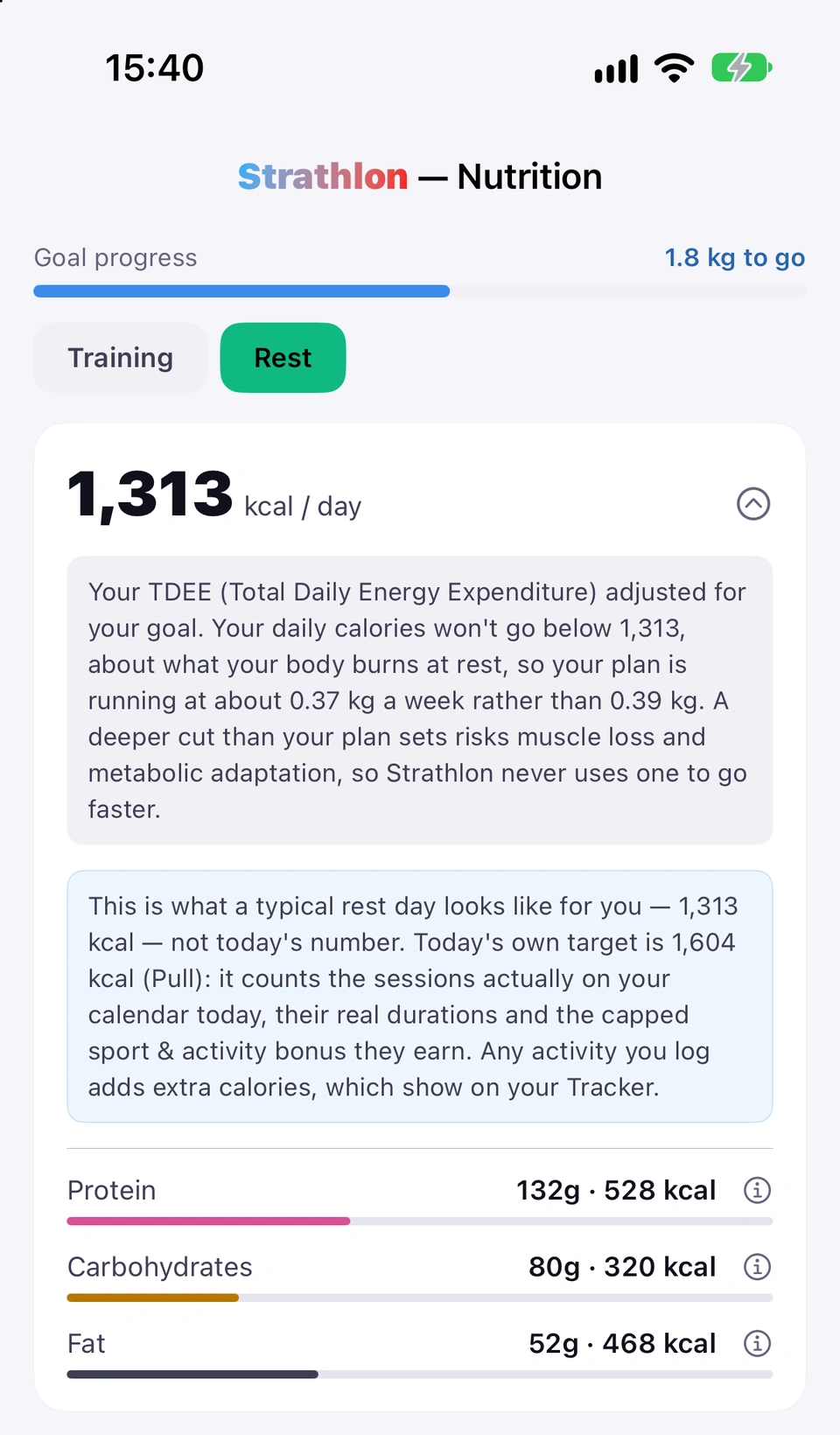
An activity you add or log leaves the figures on these tabs as they are, because they are your baseline for the kind of day you planned. Any activity you log adds extra calories, which show on your Tracker.
Good to know
Match Day only appears if your sport has a real match type; Sport Training only appears if you have a sport set up at all.
Today's food filed under another tab
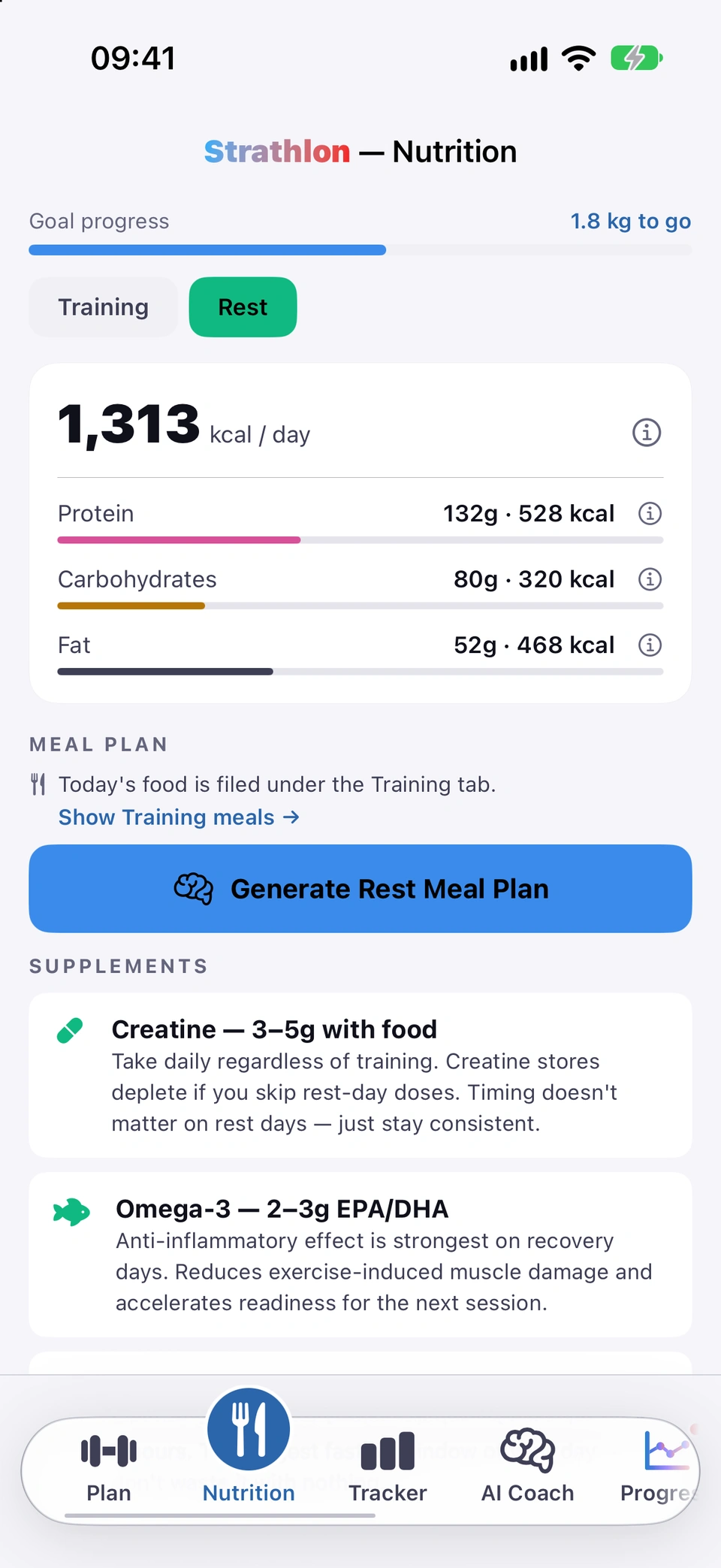
On a break, a line tells you which day-type tab today's food is actually filed under, with a one-tap jump to it.
WhereNutrition›Show Day meals →
What it is
If today's food is filed under a different day type than the one you're viewing (for example while a holiday or can't-train break is on), a line reads Today's food is filed under the Day tab. with a Show Day meals → button.
Why it helps
It stops you looking at the wrong tab and wondering where today's meals went.
Today's food filed under another tab.
When it happens
Whenever today's food is filed under a different day-type tab than the one currently open.
How to use it
Read the line naming which tab today's food is on.
The selected day type's calorie target, with protein, carbs and fat underneath in grams and calories.
WhereNutrition›macro card
What it is
Under the day-type chips, a card shows the selected day type's calorie target in large figures, with protein, carbs and fat below it. An ⓘ next to the calorie figure explains how it was worked out.
Why it helps
It's the target you're aiming for on that kind of day, broken down so you can see where the calories go.
How to use it
Open the Nutrition tab and select a day type.
Read the calorie figure and the protein/carbs/fat figures under it.
The day's target, and how it was worked out.Tap the ⓘ beside the calorie figure for an explanation.
How far you are from your goal weight, with a progress bar — and, once you're close, a prompt to consider switching to Maintenance.
WhereNutrition›Goal progress
What it is
On the Nutrition tab, a Goal progress line and bar show how far you are from your goal weight. Once you're close to it, this becomes a 🎉 Goal reached! banner (or the remaining distance) with a link to switch to Maintenance.
Why it helps
It's a running check on your goal weight without leaving the Nutrition tab.
Goal progress.
How to use it
Open the Nutrition tab.
Read Goal progress and the bar beneath it.
Once you're close, tap Switch to Maintenance Phase → if you're ready.
Good to know
This only shows while you have a goal weight set, you're not already in Maintenance, and no pregnancy is recorded.
Builds a full day of meals for the selected day type from your targets and food preferences — with the subscription.
With the subscription
WhereNutrition›MEAL PLAN›Generate Day Meal Plan
What it is
Generate Day Meal Plan builds a full day of meals sized to that day type's targets, using your food preferences and any allergies you've set.
Why it helps
It removes the guesswork of hitting your targets — a ready-made day of meals that adds up to what you need.
Your day's meals, generated for your targets.
How to use it
Open the Nutrition tab and select a day type.
Tap Generate Day Meal Plan.
If a plan already exists, choose whether to fill only the missing slots or replace it entirely.
Tips
Each plan you generate, fill or regenerate is a longer, more detailed request, so it usually uses more than one of your coach credits.
Good to know
Generated meals now have to fit that day type's calorie, protein, carb and fat targets — if a saved plan no longer fits (because you changed a target since), the tab says so.
Locked meal plans for non-subscribers
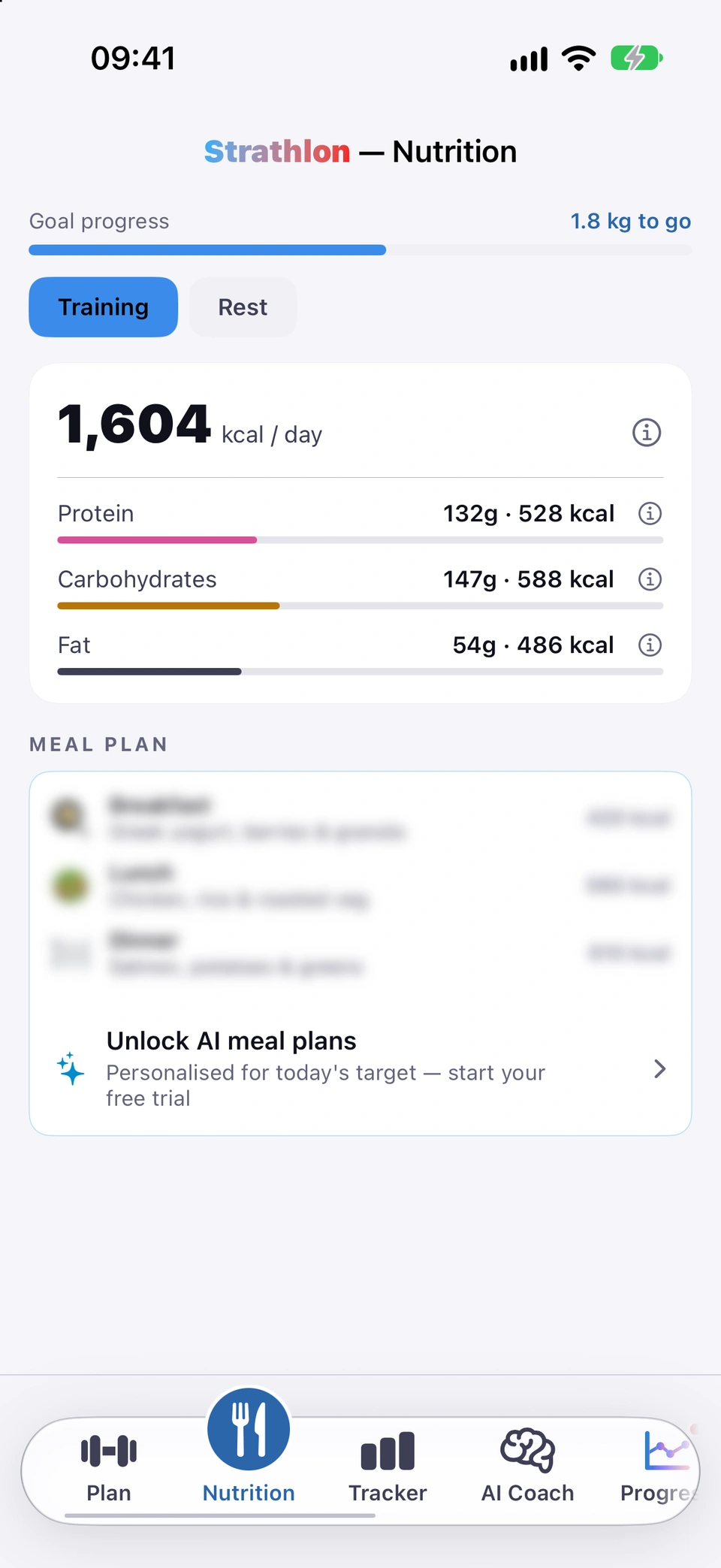
Without the subscription, the Nutrition tab shows a blurred sample day of meals and an Unlock AI meal plans button.
WhereNutrition›MEAL PLAN›Unlock AI meal plans
What it is
Without an active subscription, the meal-plan area shows a blurred sample day of meals with Unlock AI meal plans instead of a real generated plan.
Why it helps
It shows what a generated plan looks like before asking you to subscribe.
Locked meal plans for non-subscribers.
How to use it
Open the Nutrition tab without an active subscription.
Tap Unlock AI meal plans to see subscription options.
Each meal in a plan shows its calories, macros, ingredients and prep/cook steps — tap to expand it.
WhereNutrition›MEAL PLAN›meal card
What it is
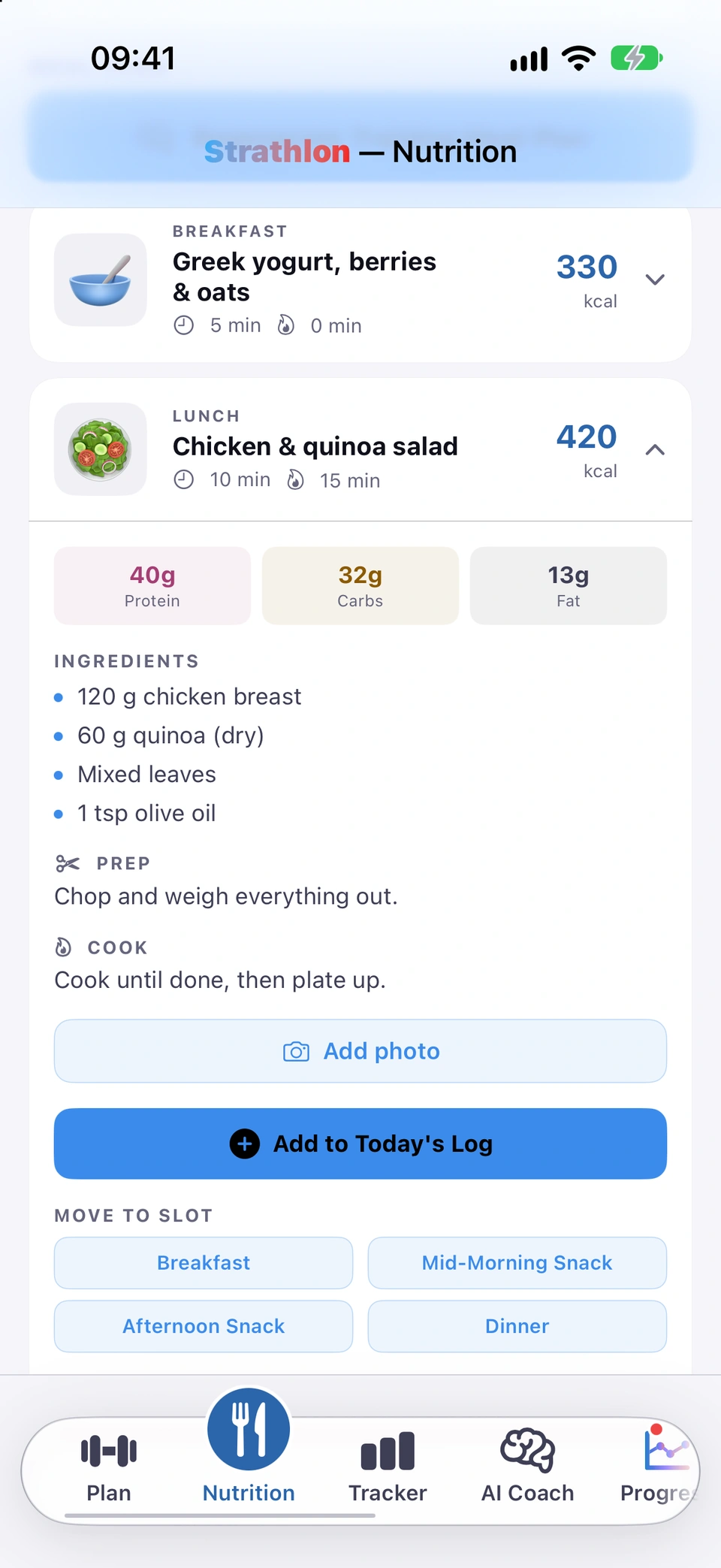
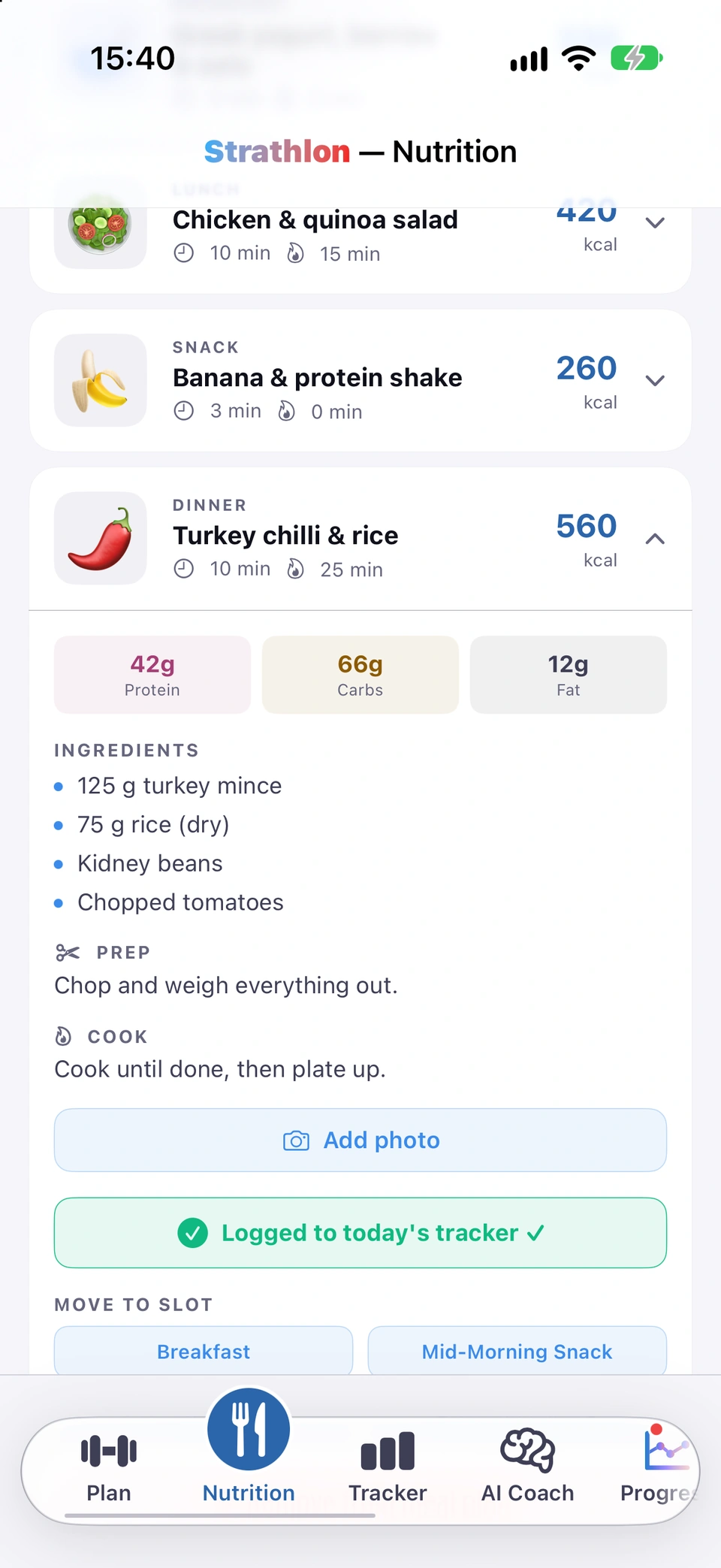
Each meal in a generated plan is a card showing its emoji, name, prep and cook time and calories. Tapping it expands to show protein/carbs/fat, ingredients, prep and cook instructions.
Why it helps
Everything you need to make the meal is on one card, rather than a bare calorie total.
Open a meal for its ingredients and steps.
How to use it
Open the Nutrition tab and select a day type with a plan.
Tap a meal card to expand it.
Add or change its photo, add it to today's log, move it to another slot, or remove it — see Log a planned meal.
Log a planned meal
Add a meal-plan meal to today's log in one tap, or move it to another meal slot.
WhereNutrition›MEAL PLAN›meal card›Add to Today's Log
What it is
An expanded meal card has Add to Today's Log (turns to Logged to today's tracker ✓ once tapped) and a MOVE TO SLOT grid of the other slots.
Why it helps
It's how a planned meal becomes a logged one, without retyping its figures.
How to use it
Expand a meal card.
One tap logs a planned meal to today.Tap Add to Today's Log to log it to today, or tap a slot under MOVE TO SLOT to move it there instead.
Good to know
Add to Today's Log disables itself once tapped, so you can't log the same planned meal twice by accident.
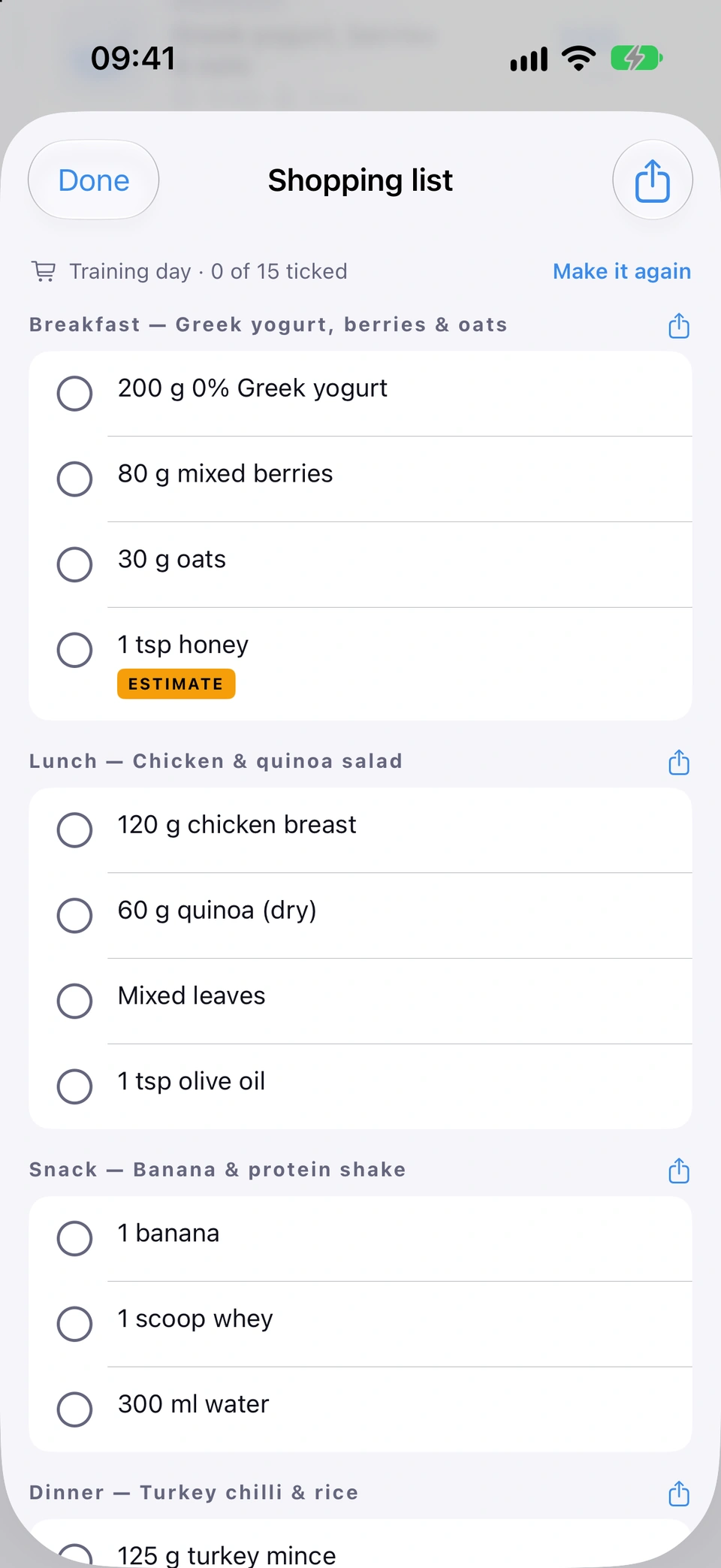
Turn a day's food into a tickable checklist grouped by meal — estimated lines are marked, and you can share one meal or the whole day.
With the subscription
WhereNutrition›Shopping list›Make my list
What it is
Shopping list turns the selected day type's food into a tickable list grouped by meal. Meals with no ingredients of their own (hand-logged or scanned food) are estimated from their name and calories, and marked ESTIMATE.
Why it helps
It saves rewriting a plan's ingredients into a separate list by hand, and tells you honestly which lines are a guess.
Your list, meal by meal, with any estimate marked.
How to use it
Open the Nutrition tab on a day type that has food.
Tap Shopping list.
Check which meals need an estimate, then tap Make my list.
Tick items off as you shop.
Tap the share icon on a meal's header to share just that meal, or Share the whole day for everything.
Tips
If the day's food changes after you've built the list — you regenerate the plan, or log another meal — the sheet offers Refresh list to rebuild it while keeping ticks that still match.
Good to know
There is one list per day type — Training, Rest, Match Day or Sport Training each keep their own.
Supplement suggestions for the selected day type, with dose, timing and why — flagged if one matches something you've said to avoid.
With the subscription
WhereNutrition›SUPPLEMENTS
What it is
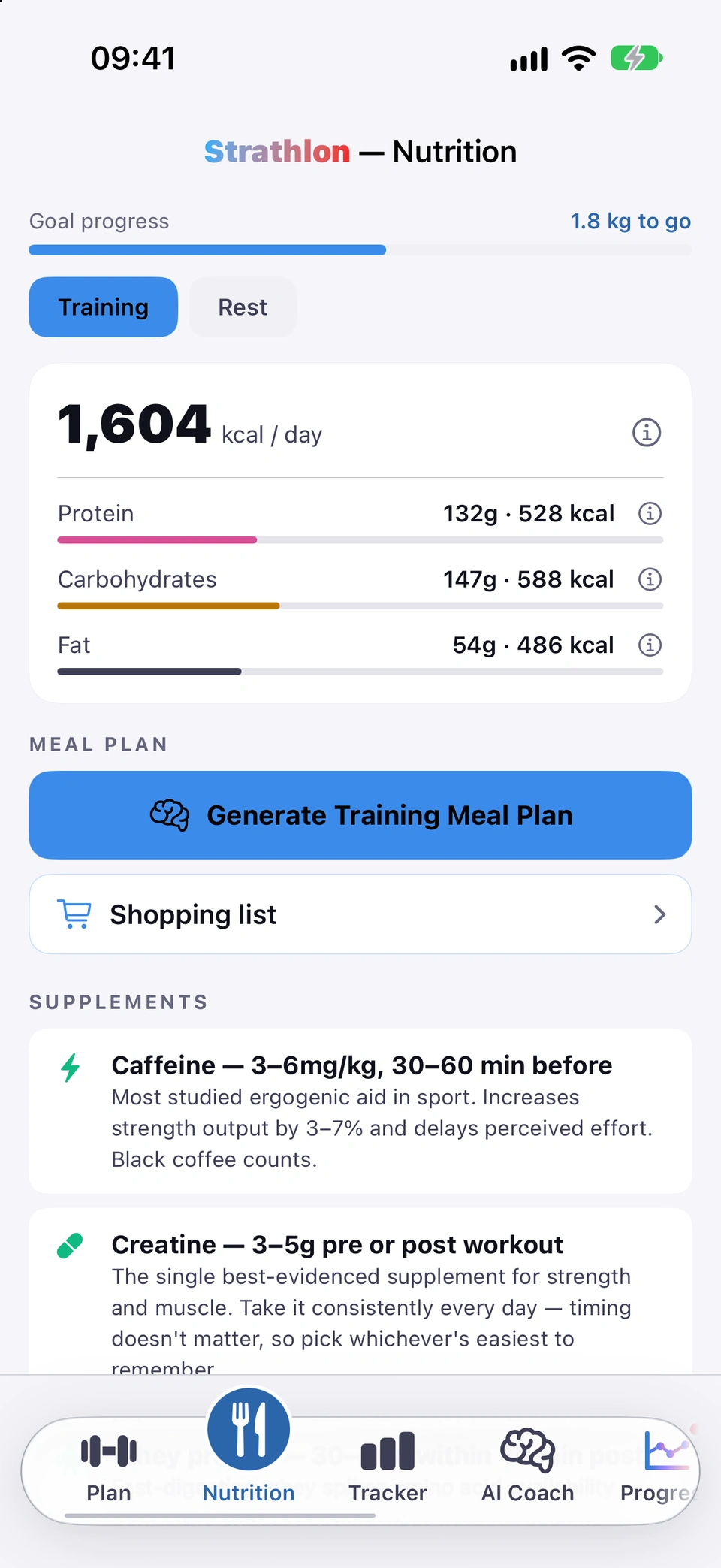
The SUPPLEMENTS section lists suggestions for the selected day type, each with its dose, timing and reasoning. Anything matching a supplement allergy or intolerance you've set is flagged AVOID.
Why it helps
Timing and dose matter for supplements as much as which ones — this ties both to the kind of day you're having.
Supplements guidance.
How to use it
Open the Nutrition tab and select a day type.
Scroll to SUPPLEMENTS and read the cards.
Good to know
Always check the label yourself — the AVOID flag is a check against what you've told Strathlon, not a guarantee about the product you buy.
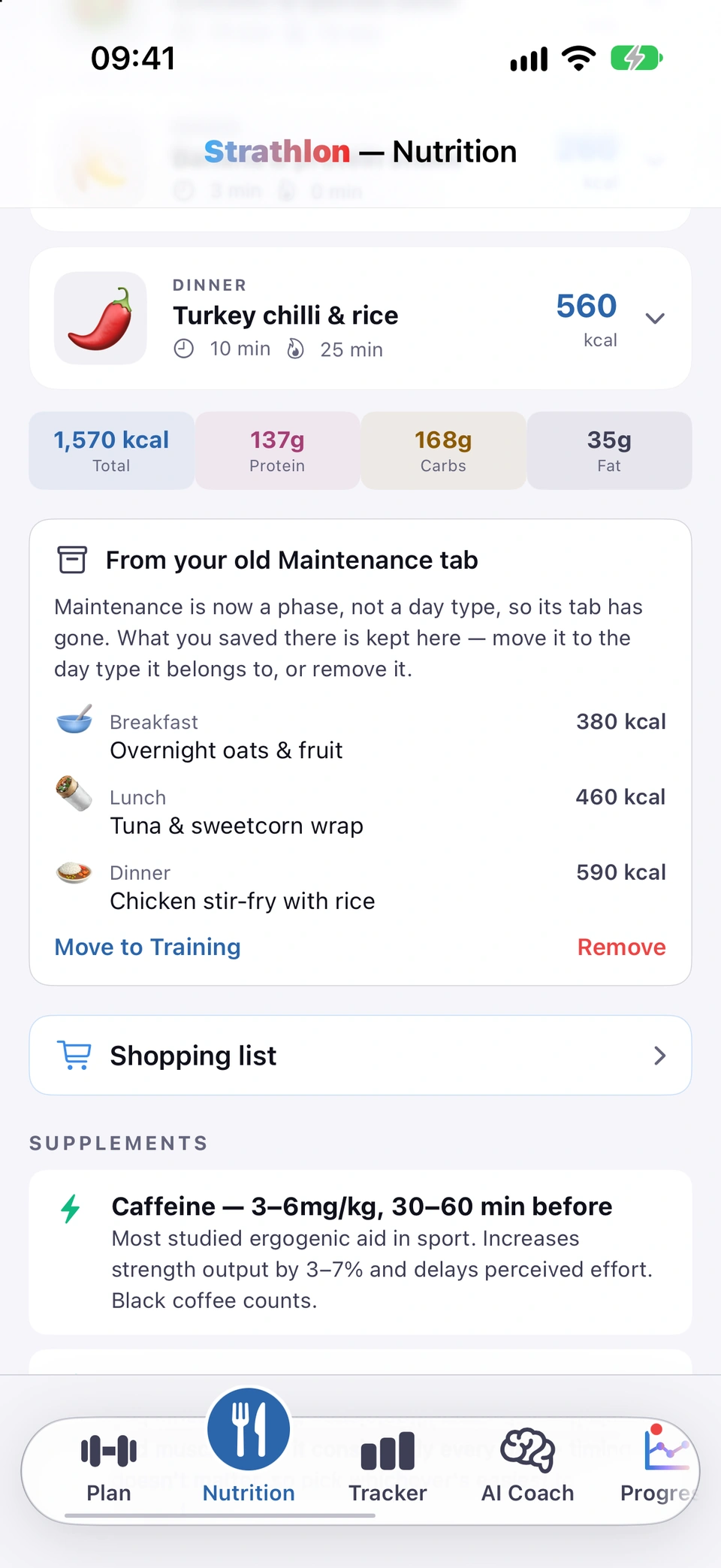
A meal plan or shopping list saved on the retired Maintenance tab is kept — move it to the day type it belongs to, or remove it.
WhereNutrition›From your old Maintenance tab
What it is
A card headed From your old Maintenance tab appears on every day-type tab while a meal plan or shopping list saved on the old Maintenance tab still exists. It offers Move to Day and Remove.
Why it helps
Maintenance became a phase rather than its own day type, so anything saved there needed somewhere to go rather than being lost.
Your old Maintenance plan, kept until you move or remove it.
How to use it
Open the Nutrition tab — the card appears on any day type while old Maintenance data remains.
Tap Move to Day to place it on the currently-selected day type (replacing that tab's plan if it already has one), or tap Remove to discard it.
Good to know
Moving a plan replaces that day type's own plan if it already has meals — you're asked to confirm first.